
How To Use StoreSEO AI Content Optimizer
StoreSEO has an AI Content Optimizer add-on feature that can help you optimize your content for SEO. From now on, you can optimize your store for better search engine ranking with just a single click. All you need is to enter your focus keyword and this feature will optimize your Meta Title, Meta Description, and Tags accordingly.
How To Use AI Content Optimizer For Shopify
First of all, install StoreSEO app in your Shopify store before following the guidelines below.
Step 1: Buy Credits For AI Content Optimizer
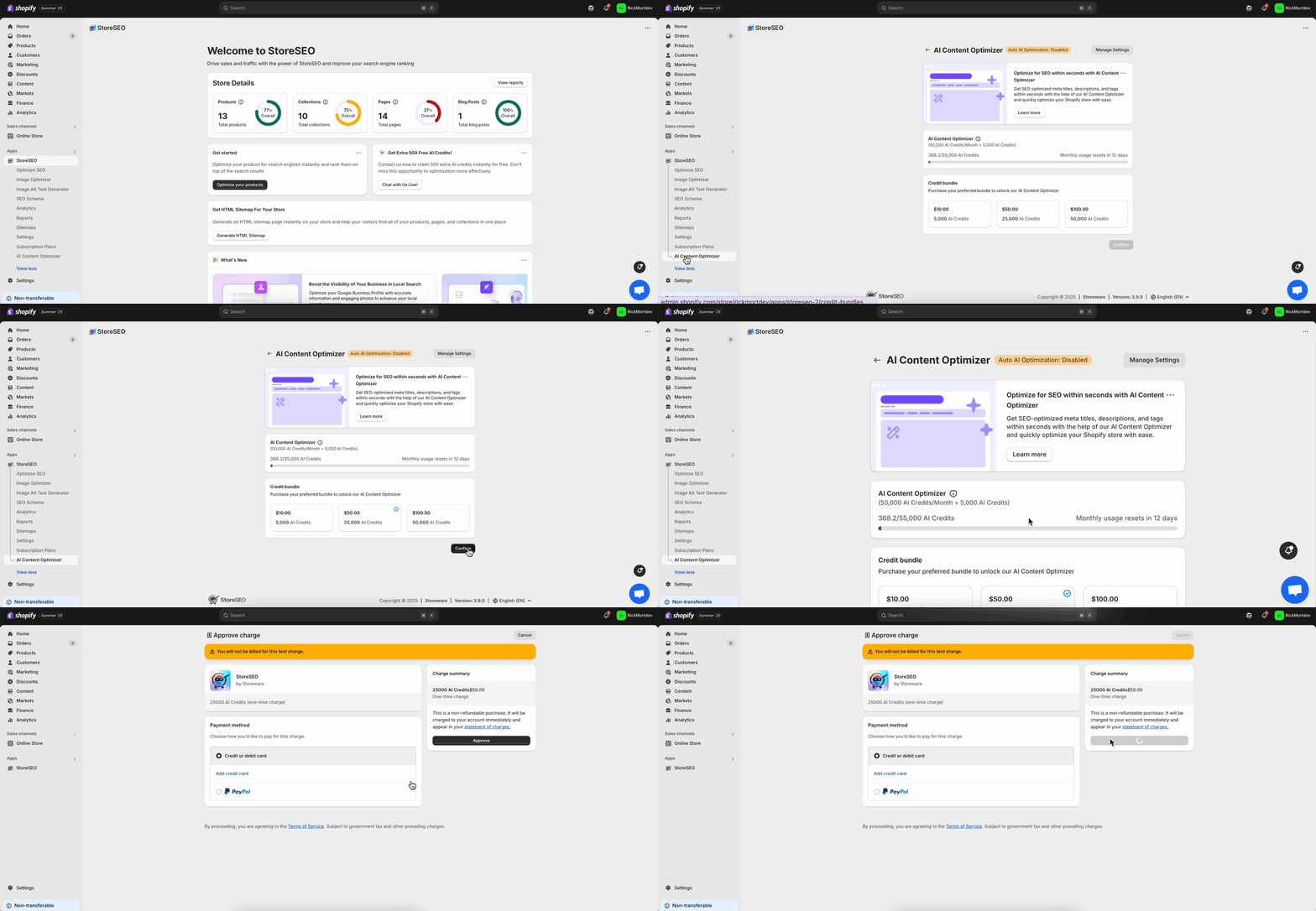
From the StoreSEO dashboard, click on the ‘AI Content Optimizer’ tab where you will see all credit plans. Now, select your preferred plan and click on the ‘Confirm’ button. Afterward, approve the payment to buy credits for the AI Content Optimizer.
Step 2: Optimize Your Product Page
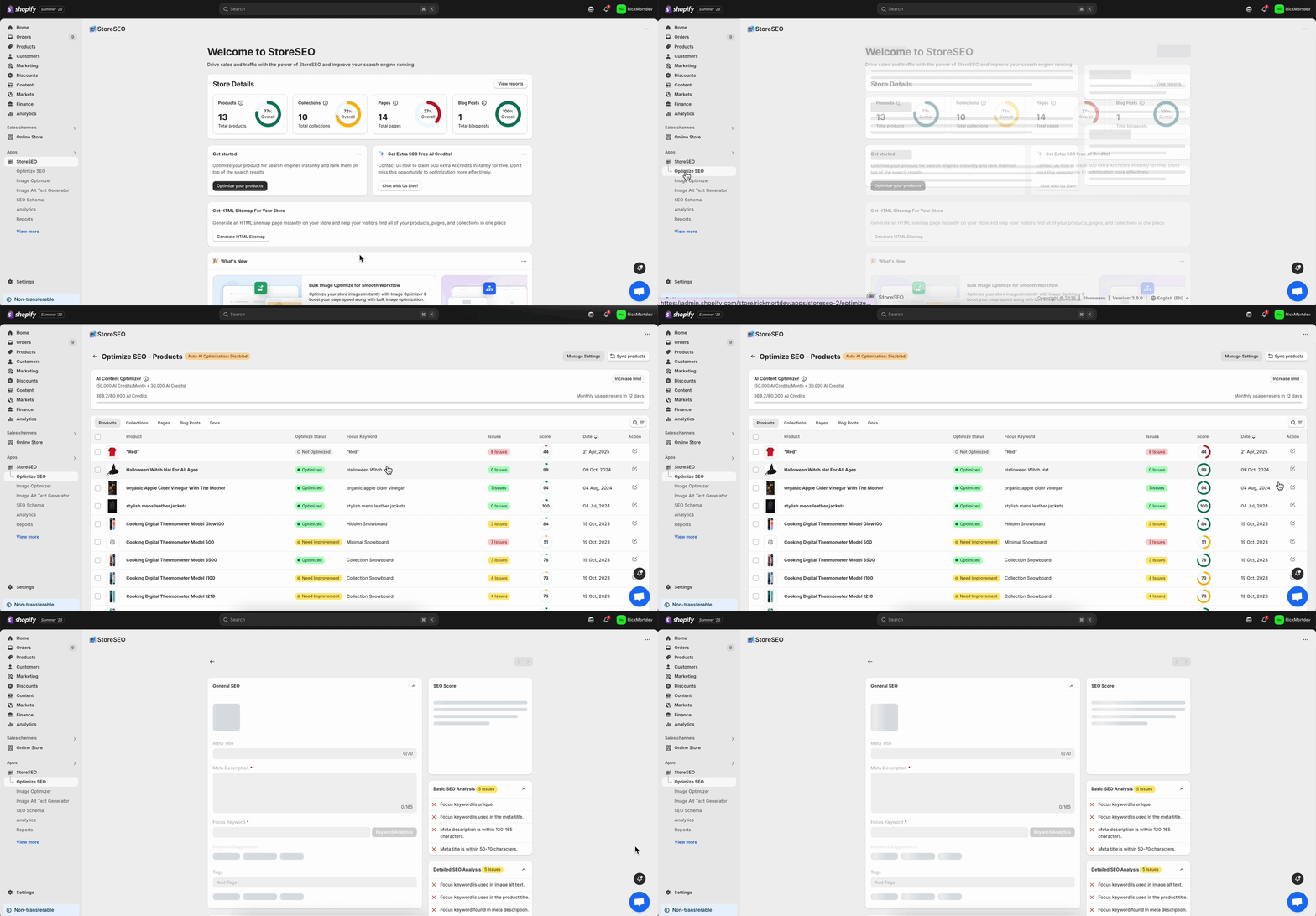
Go to the product that you want to optimize by navigating to ‘Apps’ → ‘StoreSEO’ → ‘Optimize SEO’ → ‘Products’ → Click the ‘Fix’ button.
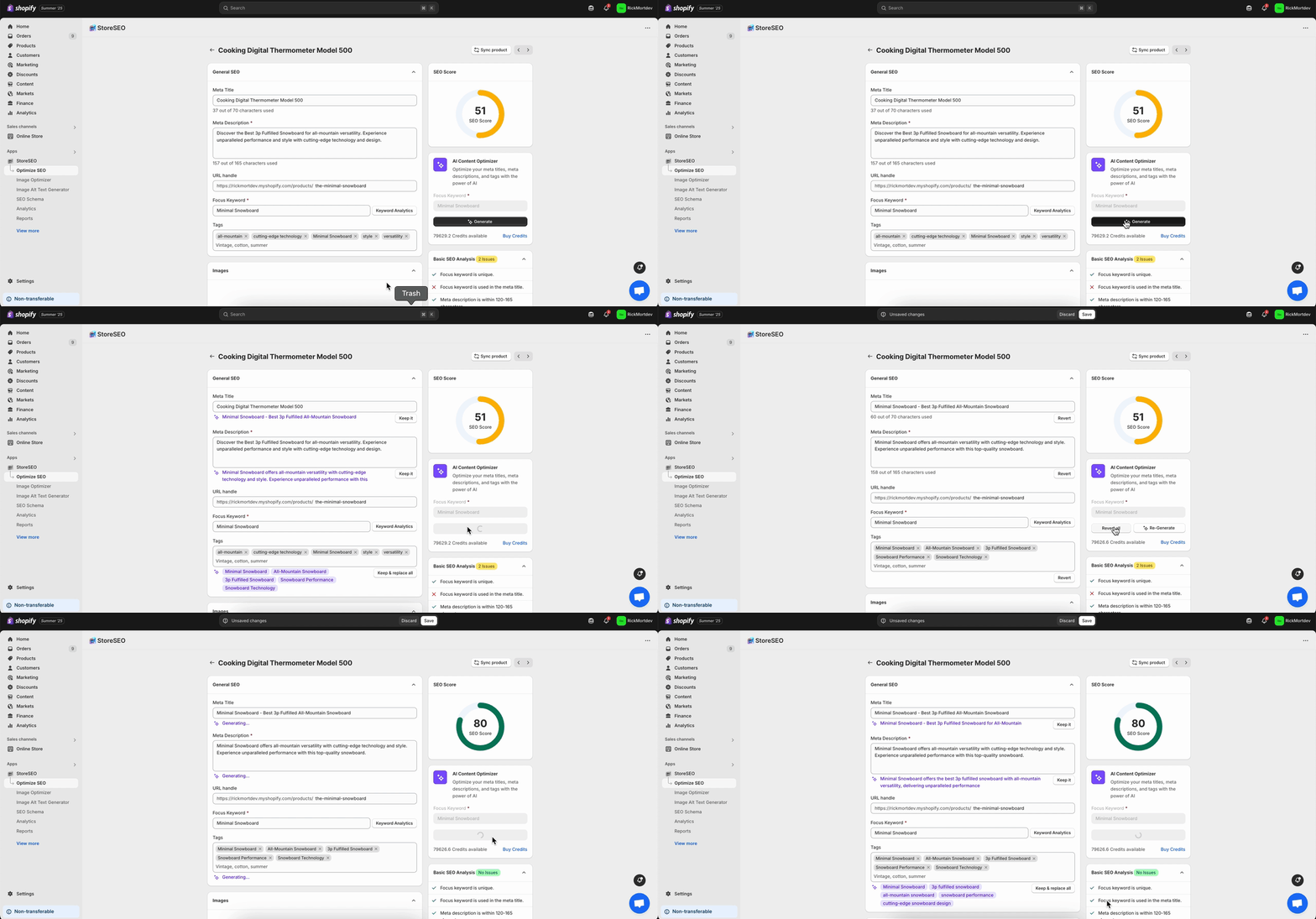
Afterward, provide your focus keyword and click on the ‘Generate’ button. Your Meta Title, Meta Description, and Tags will be automatically optimized instantly. Click on the ‘Keep’ button to add the AI-generated content or you click on the ‘Re-generate’ button to rewrite the content automatically.
You can also click on the ‘Revert’ button to go back to the previous version or click on the ‘Revert all’ button to revert all changes. Once you are satisfied with the result click on the ‘Save’ button.
Step 3: Optimize Your Collection Pages
Go to the page that you want to optimize by navigating to ‘Apps’ → ‘StoreSEO’ → ‘Optimize SEO’ → ‘Collections’ → Click the ‘Fix’ button.
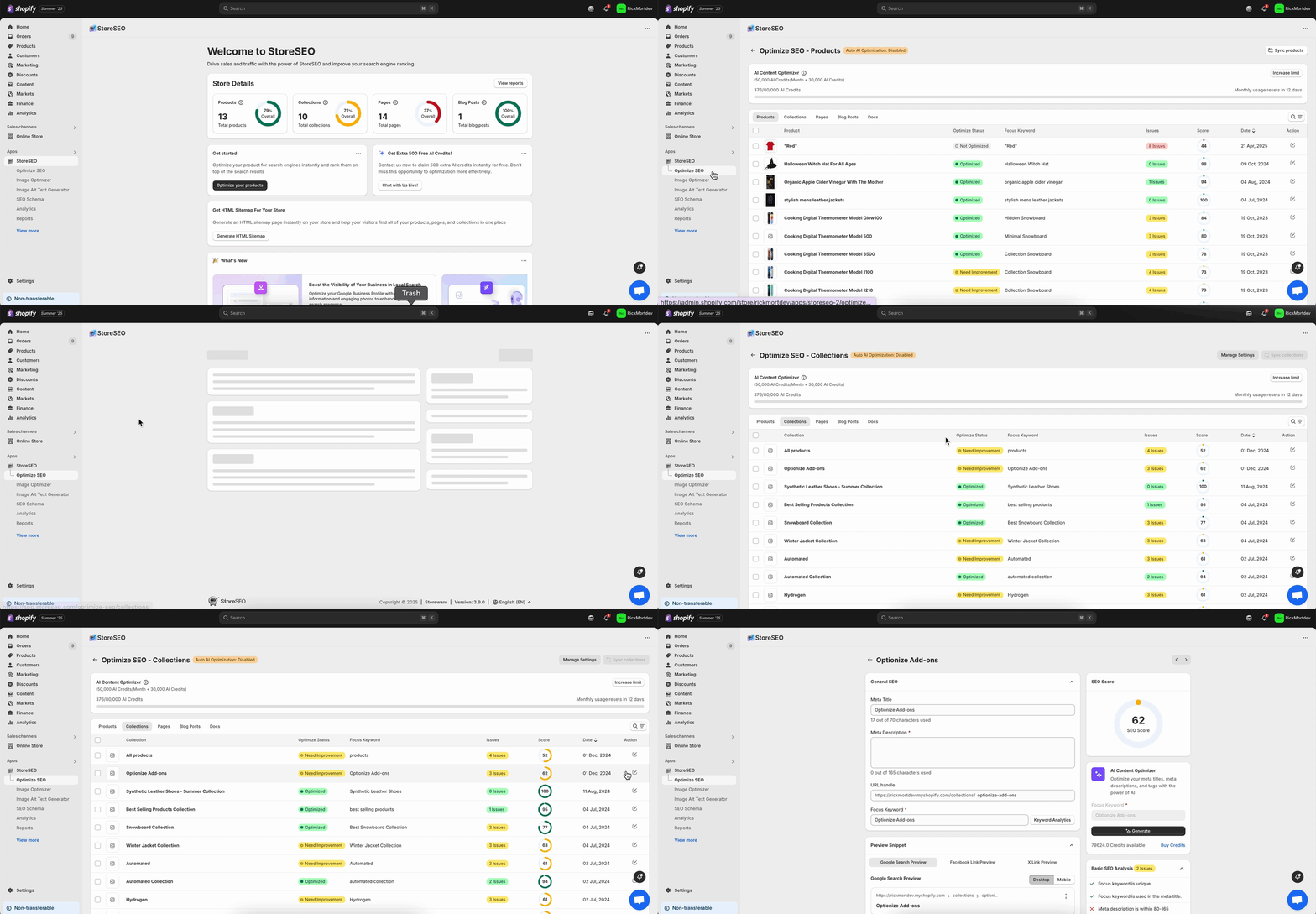
Similarly, provide your focus keyword and just click on the ‘Generate’ button. Your Meta Title and Meta Description will be automatically optimized instantly. Click on the ‘Keep’ button to add the AI-generated content or you click on the ‘Re-generate’ button to rewrite the content automatically as previously shown and save it.
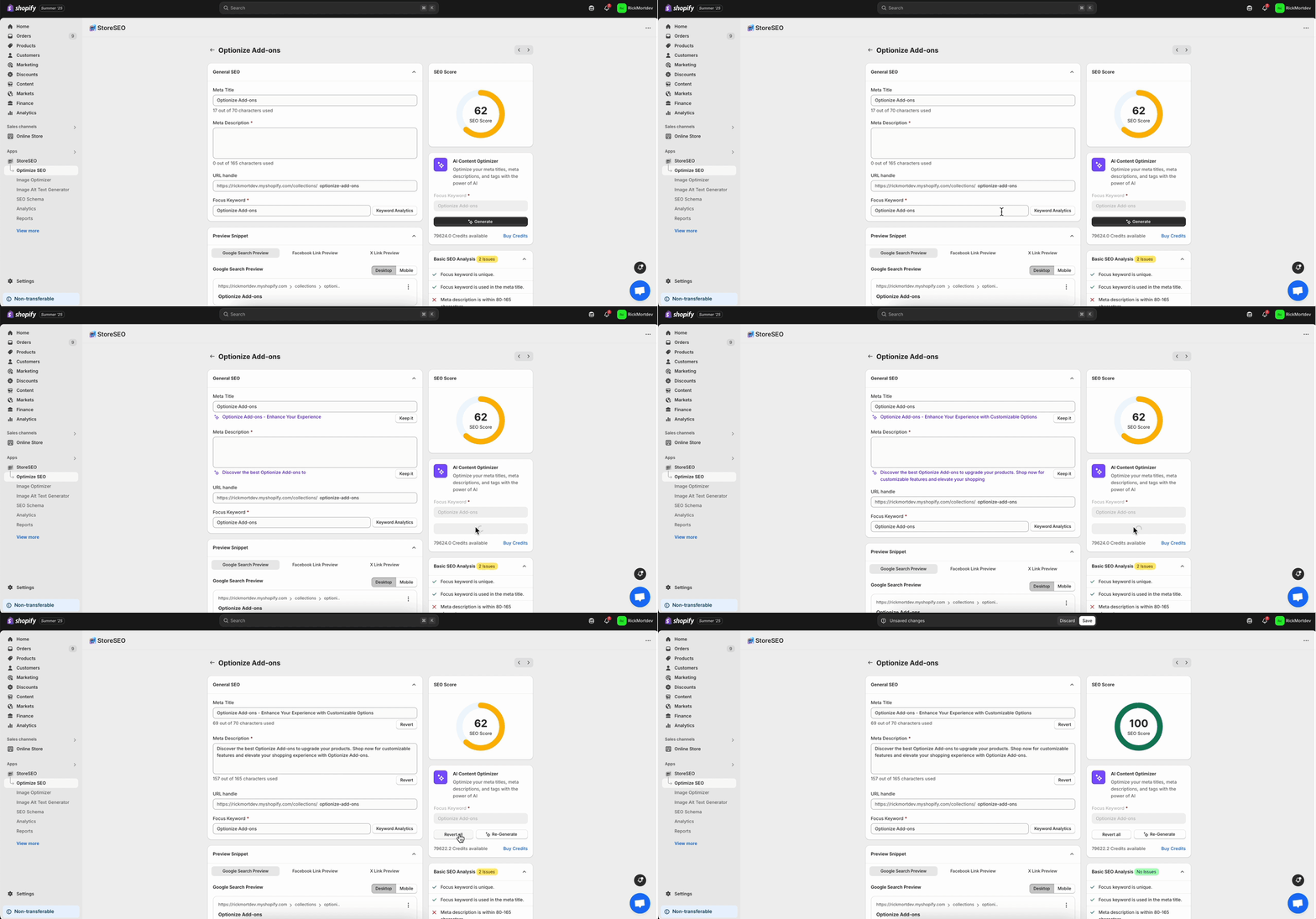
Step 3: Optimize Your Pages
Go to the page that you want to optimize by navigating to ‘Apps’ → ‘StoreSEO’ → ‘Optimize SEO’ → ‘Pages’ → Click the ‘Fix’ button.
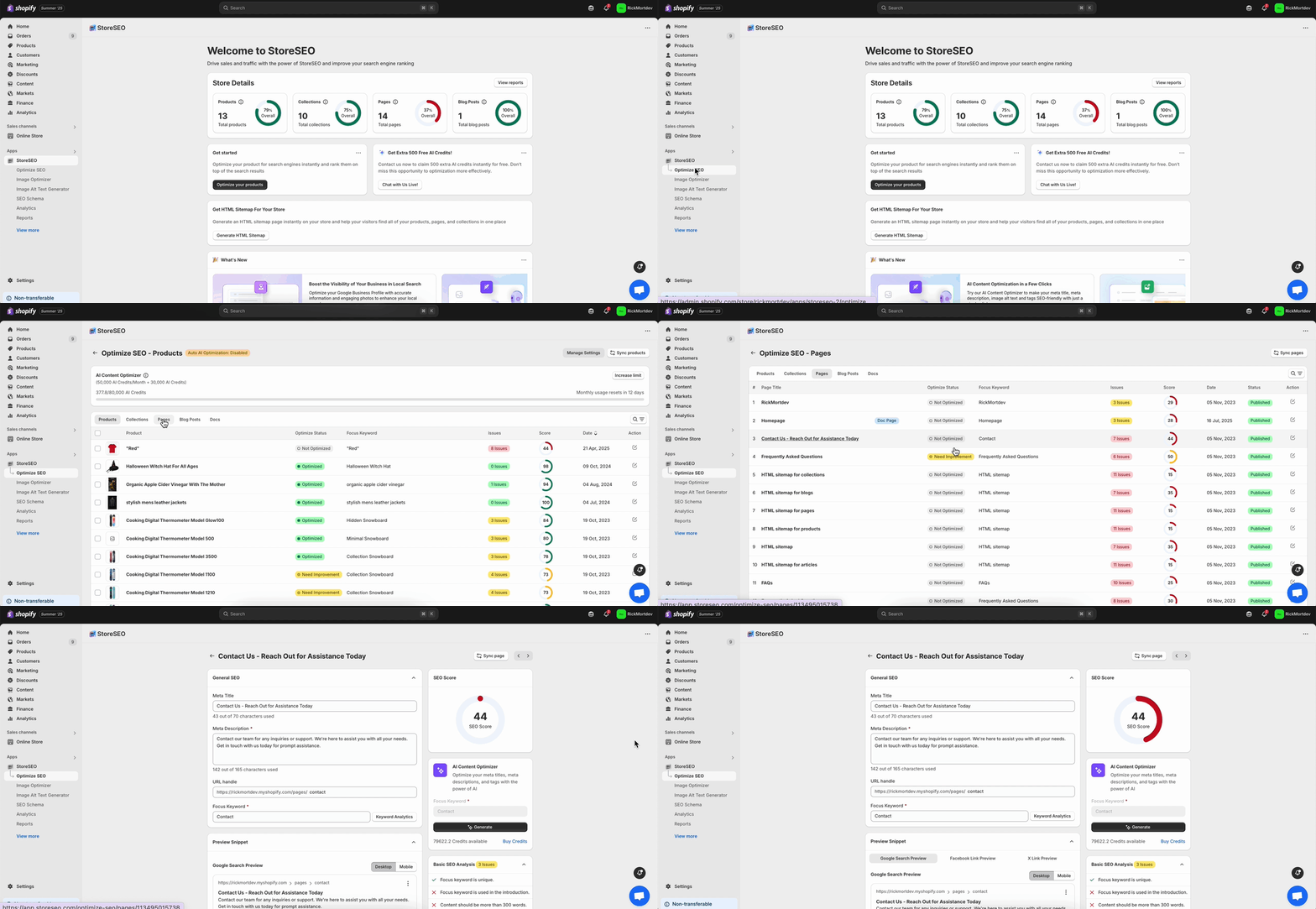
Similarly, provide your focus keyword and just click on the ‘Generate’ button. Your Meta Title and Meta Description will be automatically optimized instantly. Click on the ‘Keep’ button to add the AI-generated content or you click on the ‘Re-generate’ button to rewrite the content automatically as previously shown and save it.
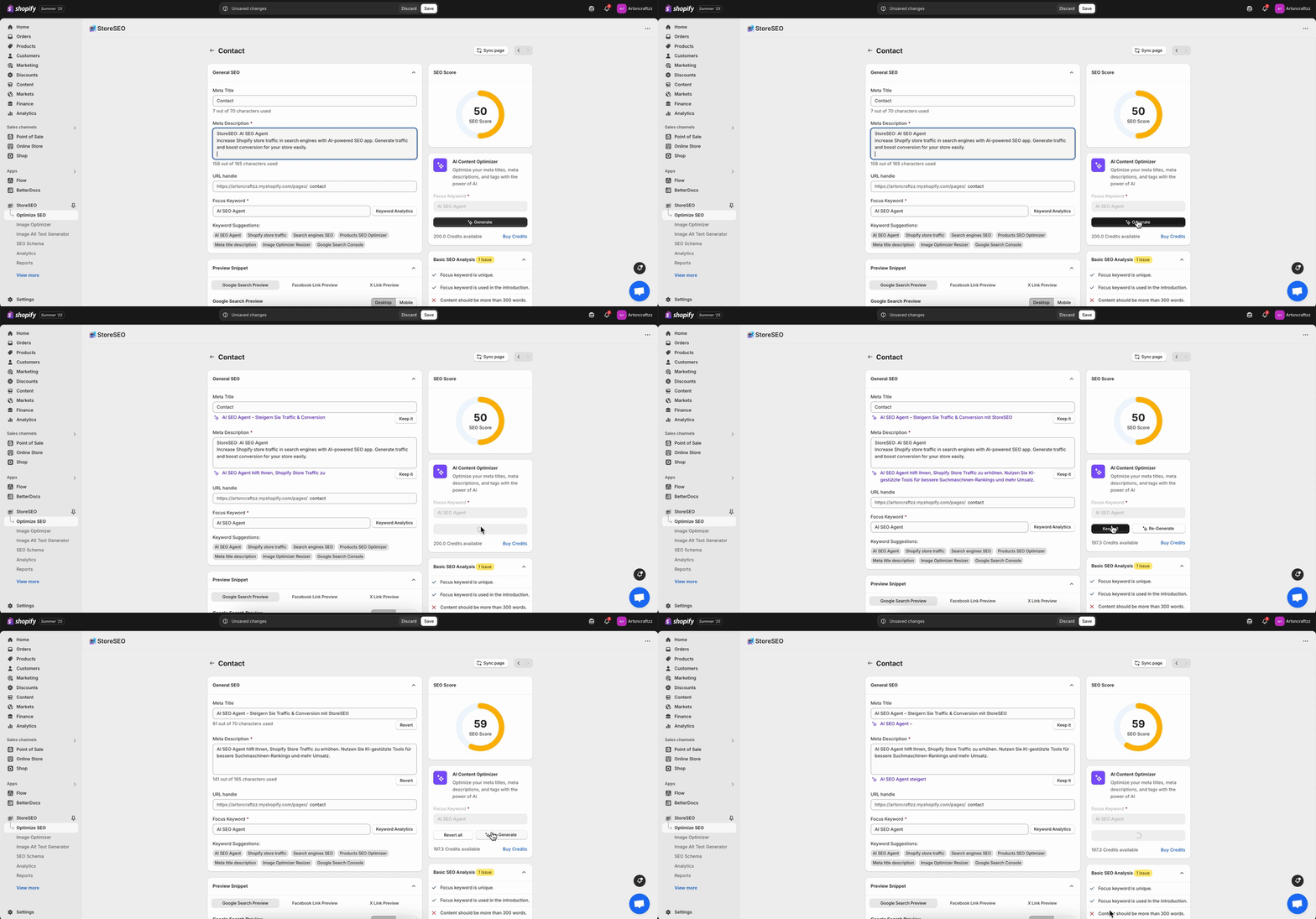
Step 4: Optimize Your Blog Posts
Go to the page that you want to optimize by navigating to ‘Apps’ → ‘StoreSEO’ → ‘Optimize SEO’ → ‘Blog Posts’ → Click the ‘Fix’ button.
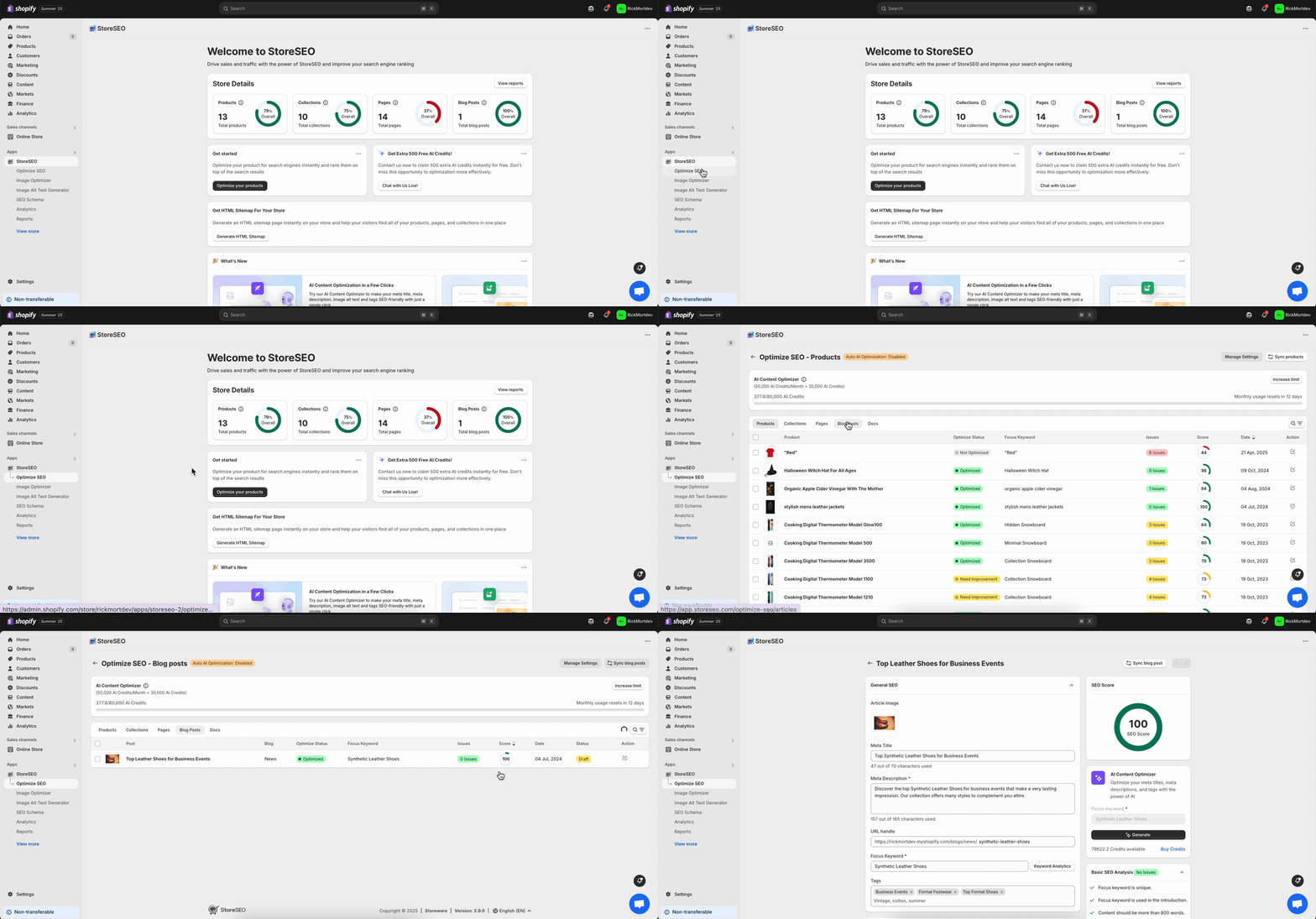
Similarly, provide your focus keyword and just click on the ‘Generate’ button. Your Meta Title and Meta Description will be automatically optimized instantly. Click on the ‘Keep’ button to add the AI-generated content or you click on the ‘Re-generate’ button to rewrite the content automatically as previously shown.
Need assistance? Feel free to reach out to our dedicated support team for any type of query.
Still need help?
Our support team is happy to assist you.